
Monthly close sounds like something only “real companies” do. Like you need an accounting department, a controller, and a person named Steve who drinks black coffee and loves spreadsheets.
Not true.
If you’re a small business owner, monthly close is basically just this: making sure your books match reality, so you can trust your numbers before you make decisions off them.
And if your books are in decent shape already, you can do a clean monthly close in about an hour.
This post is the exact 1 hour checklist. It’s meant to be practical. A little messy in spots. Because that’s what it looks like when you’re doing this in between client work, payroll, and everything else.
If you use QuickBooks Online, even better. But most of this applies no matter what.

The goal (so you don’t overthink it)
A good monthly close gives you three things:
- Cash is right (bank and credit cards match the statements).
- Income and expenses make sense (no mystery categories swallowing your profit).
- You can actually use the reports (Profit and Loss and Balance Sheet aren’t lies).
You’re not trying to produce audited financials. You’re trying to get decision ready data.
That’s it.
Before you start (2 minutes)
Grab these things:
- Bank and credit card statements for the month (PDFs are fine)
- Your accounting file (QuickBooks, Xero, etc.)
- Payroll reports (if you run payroll)
- Any loan statements (if you have debt)
Quick rule:
Do the close after all transactions for the month have cleared. If your month ends on the 31st, I like doing close around the 5th to 10th of the next month. Less chasing. Less weird pending stuff.
The 1 Hour Monthly Close Checklist (with timing)
Here’s the breakdown:
- 0:00 to 0:05 Prep + backlog check
- 0:05 to 0:30 Reconcile accounts (bank + credit cards)
- 0:30 to 0:40 Review uncategorized, rules, and coding
- 0:40 to 0:50 Payroll, loans, owner pay, transfers
- 0:50 to 1:00 Reports review + lock it down
If you’re way behind, it won’t be 1 hour. I’m not going to pretend. But once you’re caught up, this becomes routine.
Step 1. Backlog check (5 minutes)
What you’re doing
You’re checking if anything is still sitting out there that will mess up your reconciliations.
Look for:
- Unmatched bank feed items
- Duplicate downloaded transactions
- A pile of transactions in “Ask My Accountant” or “Uncategorized Expense”
- Invoices or bills from last month that were created but not actually paid/received
QuickBooks tip: Go to the Banking/Transactions area and look for any accounts with a number next to “For review.”
If the backlog is huge, don’t panic. It just means your 1 hour close becomes a 2 to 3 hour cleanup once. Then you’re back to normal.
Step 2. Reconcile your bank accounts (15 minutes)
This is the heartbeat of the whole process.
If the bank isn’t reconciled, everything else is basically vibes.
What “reconciled” means
Your accounting ending balance equals the statement ending balance, for that month. Exactly.
Do this:
- Open your bank statement.
- In your accounting system, run the reconcile tool for that bank account.
- Check off transactions until the difference is zero.
Common time wasters (and fixes)
- Missing transactions: search the register for the amount, check date filters, check if it’s in the next month.
- Duplicate transactions: delete one, or exclude one if it’s a bank feed duplicate.
- Bank charges/interest not recorded: add them directly during reconciliation.
If you have multiple bank accounts, do the main operating account first. That one affects everything.

Step 3. Reconcile credit cards (10 minutes)
Same concept as the bank reconciliation, but owners often skip this and then wonder why expenses are weird.
Important detail
Make sure credit card payments are recorded properly.
This is a classic mistake:
- You categorize the payment as “Credit Card Expense” (don’t do that).
- Or you code it to random categories.
- Or you record it twice.
A credit card payment is usually just a transfer from the bank to the card. The actual expenses are the individual card transactions.
Quick reality check
When you finish reconciling the card, the balance should equal the statement balance (as of statement date).
Step 4. Clear the “Uncategorized” pile (10 minutes)
This is the part that makes your Profit and Loss actually usable.
What to do
Run a report or filter for:
- Uncategorized Income
- Uncategorized Expense
- Ask My Accountant (if you use that holding category)
Then assign categories.
My rule of thumb
If you don’t know what it is in 30 seconds, stop and investigate:
- Click into the transaction.
- Look at payee name, memo, attached receipt.
- Search your email.
- Check the bank description.
If you still can’t figure it out, create a temporary rule:
- Put it into a “Suspense” or “To Review” category.
- Make a note.
- Don’t let it sit uncategorized forever.
Uncategorized is how your books quietly rot.
Step 5. Scan for miscategorized stuff (5 minutes)
This is where you catch the “how did that end up there” problems.
Quick scans that work
On your Profit and Loss (monthly view), look for:
- Meals or Travel spiking way higher than usual
- Office Supplies suddenly massive (often software subscriptions got dumped there)
- Owner Draw used for business expenses (very common)
- Payroll expenses missing or doubled
- Merchant fees coded incorrectly (or not at all)
You’re not doing a deep audit. You’re doing a smell test.
If something looks off, click it. Drill down. Fix the handful of obvious errors.
Step 6. Confirm invoices and billable income are complete (5 minutes)
If you invoice clients, this matters. Otherwise your income might look “fine” but it’s not complete.
Check:
- Did you send all invoices for the month?
- Were customer payments deposited and matched correctly?
- Are there invoices stuck in “Draft” or “Unsent”?
- Any payments sitting in Undeposited Funds that should’ve been deposited?
If you do job costing or projects, also check that revenue is assigned correctly.
Step 7. Payroll and contractor payments (10 minutes)
Payroll is one of the easiest ways for books to go wrong, because payroll systems do their own thing.
If you run payroll (W2)
Make sure:
- Payroll for the month posted to the books (correct date, correct amounts).
- Payroll liabilities aren’t going crazy (taxes withheld should be owed until paid).
- The payroll bank withdrawals match what’s in the books.
If you use a provider like Gusto, ADP, Paychex, or QuickBooks Payroll, verify the journal entries are actually coming in properly.
If you pay contractors (1099)
Do a quick check:
- Are contractor payments categorized consistently?
- Are they marked as contractor/vendor payments (so 1099s aren’t a nightmare later)?
This saves you later. Like, a lot later.

Step 8. Loans, interest, and big recurring items (5 minutes)
If you have a loan, don’t just record the payment as “Loan Expense.” That’s another classic.
A loan payment usually splits into:
- Principal (reduces the loan balance on the Balance Sheet)
- Interest (expense on Profit and Loss)
- Sometimes fees
What to do monthly
- Compare the loan balance in the books to the statement.
- Record interest for the month if it’s not already included.
Also check other big recurring items:
- Rent
- Insurance
- Software subscriptions
- Merchant processing fees
- Vehicle payments
If something is missing, your month isn’t real yet.
Step 9. Owner pay and transfers (5 minutes)
This is the stuff that makes reports confusing if it’s sloppy.
Owner draws/distributions
Make sure owner personal spending is not buried in business expense categories (or vice versa). It happens. It’s human.
Transfers between accounts
Check that transfers are recorded once, and as transfers. Not income, not expense.
If you move money from Checking to Savings, your Profit and Loss should not care. Your Balance Sheet cares.
Step 10. Run the two reports that matter (10 minutes)
You’re going to run:
- Profit & Loss (P&L) for the month and year to date
- Balance Sheet as of month end
Then do a quick review.
Profit & Loss review (what to look for)
- Revenue roughly matches what you expect (not perfect, just plausible)
- Gross profit margin makes sense (if you track COGS)
- Expenses aren’t wildly misclassified
- Net profit isn’t suspiciously high or low because of a categorization dump
Balance Sheet review (what to look for)
- Bank accounts match reconciled balances
- Credit cards match reconciled balances
- Loans look reasonable
- Accounts Receivable isn’t crazy old (if you invoice)
- Accounts Payable isn’t full of ancient bills (if you enter bills)
If you want one simple habit. Compare this month’s P&L to last month. Weird stuff will pop.
Optional, but smart: “Close the books” and save your backup
If you use QuickBooks Online, use the closing date feature once the month is done. It stops accidental edits that rewrite history.
Also export and save:
- Profit & Loss (PDF)
- Balance Sheet (PDF)
- Reconciliation reports (PDF)
It’s boring. But future you will be grateful.
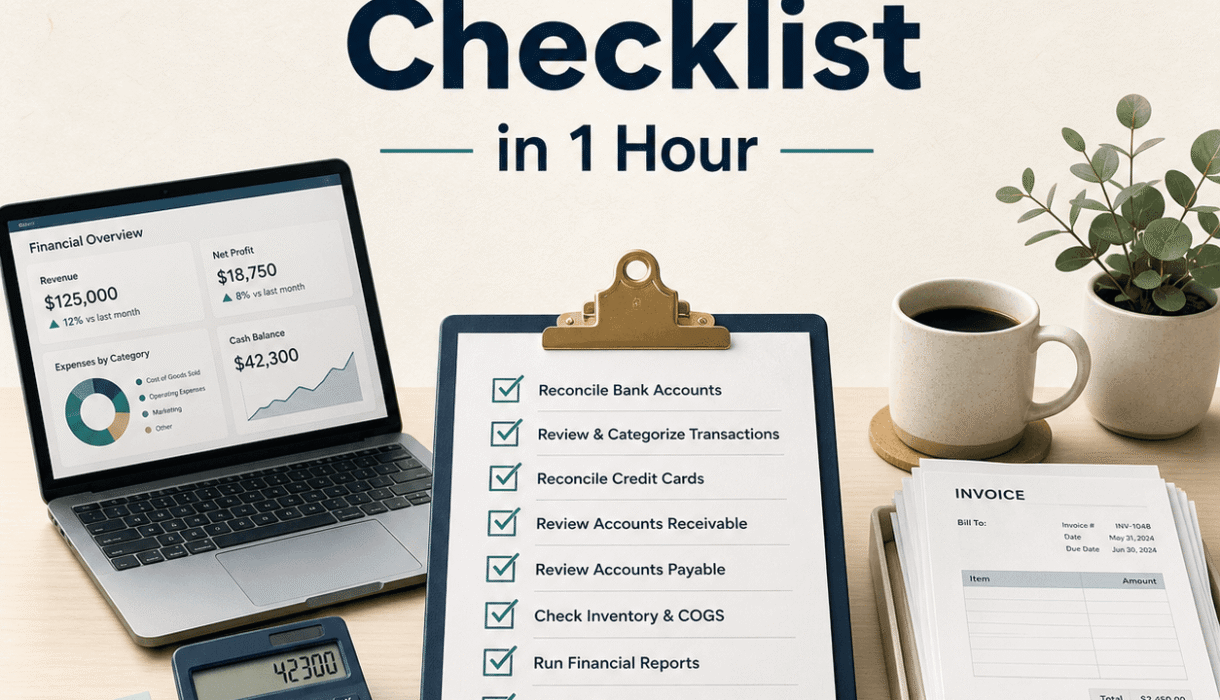
The tiny monthly close checklist (copy/paste version)
If you just want the list, here:
- Check bank feed backlog
- Reconcile operating bank account
- Reconcile other bank accounts
- Reconcile credit cards
- Categorize uncategorized transactions
- Scan P&L for weird spikes or miscoding
- Verify invoices sent, payments matched, deposits clean
- Confirm payroll entries + liabilities
- Review contractor coding (1099 ready)
- Record loan interest and split payments correctly
- Confirm owner draws and transfers are not expenses
- Run P&L + Balance Sheet and review
- Lock the month (closing date) + export PDFs
What usually slows people down (so you can avoid it)
A few patterns I see a lot:
1. Reconciliations aren’t being done monthly
So errors stack up. Then you’re reconciling six months at once and it turns into a weekend project.
2. Too many “misc” categories
Misc categories become junk drawers. It’s fine to have one. It’s not fine when 30% of spending is in there.
3. Mixing personal and business spending
Even “just a few things.” It adds up. And it destroys clarity.
4. Payroll entries not mapped right
Payroll needs clean mapping. If it’s off, your labor costs and taxes will be wrong, and you might not notice for months.
If you want this to stay a 1 hour task, do these two habits weekly
You don’t need a weekly close. Just:
- Categorize and match transactions once a week (10 minutes)
- Upload receipts as you go (or at least once a week)
Monthly close becomes easy when you’re not doing archaeology.
When it’s time to get help (and what to ask for)
If you’re regularly seeing any of these, you’ll probably benefit from a professional cleanup:
- You haven’t reconciled in months
- The Balance Sheet doesn’t make sense (negative assets, giant uncategorized balances, random journal entries)
- You don’t trust your P&L at all
- Tax time is always a scramble
- You want forecasting, cash flow monitoring, and KPI tracking but the books aren’t clean enough to build on
This is exactly the kind of thing Smart Bookkeeping Partner does. Clean reconciled books first, then advisory support like cash flow monitoring, forecasting, KPI tracking, profitability analysis. The foundation matters.
If you’re not sure where you stand, they offer a free QuickBooks health check that looks at how transactions are recorded, what’s reconciled, and what cleanup is needed, then you get a walkthrough of findings.
You can check that out at: https://smartbookkeepingpartner.com/
Or call 985-401-1210 if you’d rather talk it through.
Wrap up (keep it simple)
Monthly close is not about being perfect.
It’s about being consistent. Reconcile. Categorize. Review. Then use the numbers.
Because once your books are clean, you stop guessing. You can decide faster. And you’re not waiting until tax time to find out how the business is actually doing.
That’s the win.
FAQs (Frequently Asked Questions)
What is a monthly close and why is it important for small business owners?
Monthly close is the process of ensuring your accounting books accurately match reality so you can trust your financial numbers before making decisions. For small business owners, it’s about verifying cash balances, income, expenses, and reports to have decision-ready data without needing an extensive accounting department.
What are the main goals of performing a monthly close?
The three main goals of a good monthly close are: 1) Ensuring cash balances (bank and credit cards) match the statements exactly; 2) Confirming income and expenses make sense with no mysterious categories affecting profit; 3) Producing usable financial reports like Profit and Loss and Balance Sheet that reflect true financial positions.
When should I perform my monthly close and what do I need to prepare?
Perform your monthly close after all transactions for the month have cleared, typically between the 5th to 10th of the following month. Prepare by gathering bank and credit card statements (PDFs are fine), your accounting software file (QuickBooks, Xero, etc.), payroll reports if applicable, and any loan statements.
Can I complete a monthly close in just one hour? What does the checklist look like?
Yes! If your books are in decent shape, a clean monthly close can be done in about one hour. The checklist includes: 0-5 minutes prepping and checking backlog; 5-30 minutes reconciling bank accounts; 30-40 minutes reviewing uncategorized transactions and coding; 40-50 minutes handling payroll, loans, owner pay, transfers; and 50-60 minutes reviewing reports and locking down the books.
How do I reconcile bank accounts during the monthly close?
Reconciliation means your accounting ending balance equals your bank statement ending balance exactly. To reconcile: open your bank statement, run the reconcile tool in your accounting system for that account, then check off transactions until the difference reaches zero. Address missing or duplicate transactions promptly to avoid reconciliation delays.
Why is it important to clear ‘Uncategorized’ transactions during monthly close?
Clearing ‘Uncategorized’ income or expenses ensures your Profit and Loss report accurately reflects where money is coming from or going to. Assigning correct categories makes financial reports usable for decision-making. If you’re unsure about a transaction’s category within 30 seconds, investigate further by checking details like payee name, memos, receipts, emails, or bank descriptions.