

Most business owners only think about their chart of accounts when something breaks.
Like. Tax time. A loan application. A weirdly high “uncategorized expense” number that keeps growing like a science experiment in the back of the fridge.
And the annoying part is, your chart of accounts is not exciting, but it quietly decides whether your reports are actually useful… or just technically correct and basically pointless.
This is the no regrets version. The one that holds up when you grow, hire, add a second location, switch payroll providers, start selling online, start offering services, get inventory, start doing projects, get a line of credit. All of it.
Also, if you are already in QuickBooks and things feel… messy, you can absolutely fix it without nuking everything. More on that soon.

What a chart of accounts is supposed to do (and what it’s not)
Your chart of accounts (COA) is the list of buckets your transactions fall into. But the goal is not just “have buckets.”
A well-built COA means your Profit & Loss tells you how you actually make money, your Balance Sheet is accurate, reconciled, and not haunted, and you can answer basic questions fast.
The questions you should be able to answer quickly
- What are we spending on subcontractors vs payroll?
- Is marketing working or just expensive?
- Are we profitable on the work we do, or are we just busy?
A bloated COA does not make you sophisticated. It usually makes you blind. A too-simple COA does not make you efficient either — it lumps everything together so you can’t see what’s happening. So we want the boring sweet spot.
The “no regrets” rules (these save you later)
Rule 1: Build it around decisions, not categories
If you will never make a decision based on a line item, it does not deserve its own account.
Example:
- “Office Supplies” is fine.
- “Pens,” “Paper,” “Staples,” “Printer Ink,” “Sticky Notes” is… not fine unless you are running Staples.
Rule 2: Fewer accounts, better naming, consistent use
A clean COA is not one with 300 accounts. It’s one where two different people would code the same bill to the same place without a meeting.
Rule 3: Don’t use the COA to track everything
Want to track by:
- location
- department
- job
- product line
- channel
- class of customer
In QuickBooks, a lot of that should be Classes, Locations, Projects, Tags, Items, Customers, Vendors.
Not 47 versions of “Meals and Entertainment.”
Rule 4: Keep accounts stable across years
If you rename or reorganize accounts every year, your trends become garbage.
Small tweaks are fine. A yearly identity crisis is not.
Start with the reporting you actually want
Before you add accounts, answer this:
- Do you want to see profitability by service line?
- Do you need job costing?
- Do you want to separate “owner stuff” from business operations?
- Do you want to track marketing spend by channel?
- Are you planning to borrow money in the next 12 to 24 months?
- Do you have inventory?
- Do you have payroll? Employees vs contractors?
Write the answers down. That becomes your COA blueprint.
The core COA structure (the parts you should not get creative with)
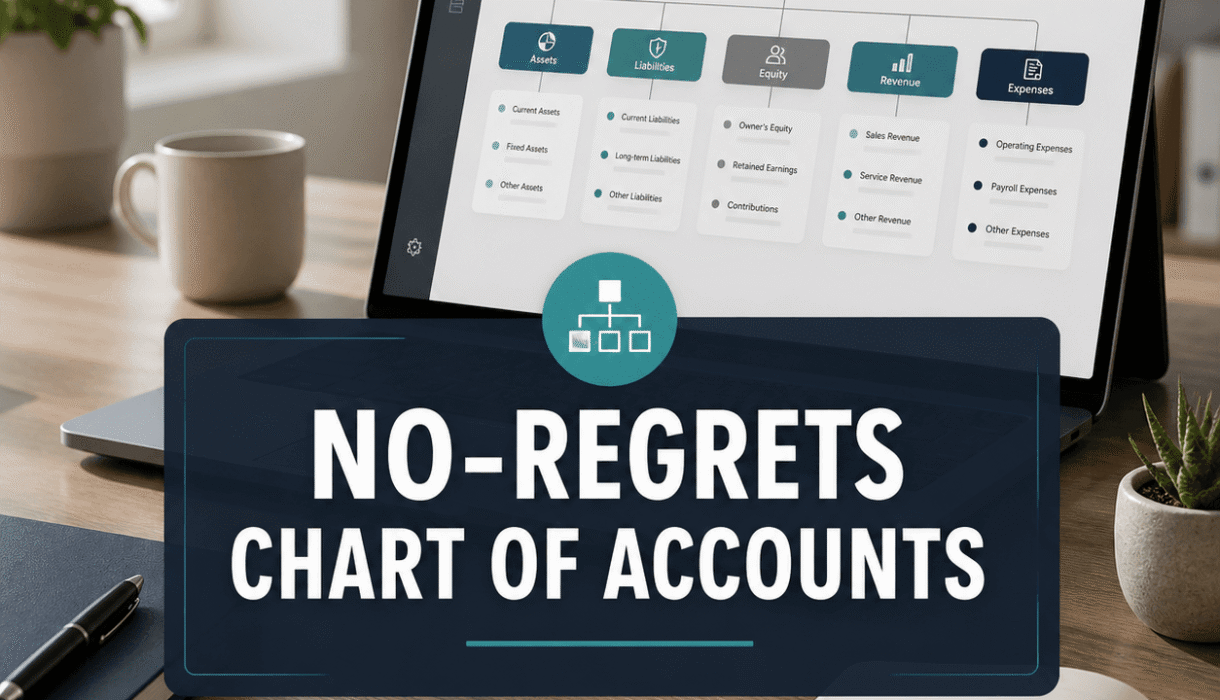
A COA is usually organized like this:
- Assets
- Liabilities
- Equity
- Income
- Cost of Goods Sold (COGS)
- Expenses
- Other Income / Other Expense (use sparingly)
If your file has income accounts mixed into expenses, or liability accounts living in “Other Expense,” you are going to have a bad time. Maybe not today. But eventually.
Assets: keep it simple and reconcilable
Typical asset accounts:
- Checking
- Savings
- Payroll Clearing (if your payroll process needs it, not always)
- Undeposited Funds (QuickBooks uses this, don’t make five of them)
- Accounts Receivable (A/R) (system controlled)
- Inventory Asset (only if you track inventory properly)
- Prepaid Expenses (only if you actually track prepaids)
Fixed Assets
- Furniture & Equipment
- Computers
- Vehicles (sometimes)
- Accumulated Depreciation (contra asset, usually accountant managed)
No regrets tip: if you are not going to reconcile it, don’t create it.
Example: “Employee Advances Receivable” is fine if you truly track it. Otherwise it becomes a junk drawer.
Liabilities: the usual suspects (and the ones people mess up)
Typical liability accounts:
- Accounts Payable (A/P) (system controlled)
- Credit Cards (each card gets its own account)
- Sales Tax Payable (if applicable)
- Line of Credit
- Customer Deposits / Unearned Revenue (very common, very useful)
Payroll Liabilities
- Federal Withholding
- State Withholding
- FICA
- Unemployment
- Benefits Payable (if applicable)
Loans Payable
- Note Payable, Bank XYZ
- Vehicle Loan
No regrets tip: do not book loan payments straight to “Loan Expense.” Split them properly between principal (liability) and interest (expense). Your Balance Sheet will thank you.
Equity: boring but important
Equity accounts might include:
- Owner’s Contribution
- Owner’s Draw (or Distributions)
- Retained Earnings (system controlled)
- Opening Balance Equity (should usually be zero after cleanup, seriously)
If “Opening Balance Equity” has a balance from 2021 and nobody knows why, that is a sign your setup needs attention.
Income: don’t make 40 income accounts unless you need them
Most businesses do fine with a small number of income accounts. Common examples include Sales Income (or Revenue), Services Income, Product Sales, Membership Revenue, and Shipping Income (sometimes).
If you want profitability by service line, consider using the following tools instead of creating more income accounts:
- Classes/Locations for reporting
- Products & Services (Items) for detail
- Projects for job-based work
These approaches keep your income accounts cleaner and your reports more useful.
No regrets naming tip: pick one term and stick to it. “Sales,” “Revenue,” or “Income.” Just do not mix all three randomly.
COGS: only for direct costs tied to delivering what you sell
This is where a lot of charts of accounts go off the rails. COGS should only include costs that move with sales and are directly tied to producing the product or service.
Common COGS accounts:
- Materials
- Freight / Shipping In (for product businesses)
- Subcontractors (for service businesses where subs deliver the service)
- Direct Labor (sometimes, depending on how you track payroll)
- Merchant Fees (debated — pick a consistent approach)
If you put rent in COGS because “we need the space to do the work,” your gross profit becomes meaningless. Keep rent in Expenses.
No regrets test: if sales went to zero for a month, would this cost mostly go away? If yes, it may belong in COGS. If no, it belongs in Expenses.
Expenses: the place where you either get clarity or chaos
This is where you want enough detail to make decisions, not so much detail that nobody codes consistently.
A no regrets expense list for many small businesses:
People and labor
- Payroll Expense (or Wages)
- Payroll Taxes (employer portion)
- Benefits
- Contractors (if not COGS)
- Recruiting / Hiring
Occupancy
- Rent
- Utilities
- Repairs & Maintenance
Operating
- Software Subscriptions
- Office Supplies
- Postage & Shipping (outbound, if not COGS)
- Bank Fees
- Dues & Memberships
- Training & Education
- Insurance
- Licenses & Permits
Sales and marketing
- Advertising
- Marketing Tools
- Website
- Sponsorships
- Promotions
Travel and meals
- Travel
- Meals (separate if you want, but keep it simple)
Professional services
- Legal
- Accounting/Bookkeeping
- Consulting
Vehicle (if applicable)
- Fuel
- Repairs & Maintenance
- Vehicle Insurance
- Mileage Reimbursement (if you reimburse)
No regrets tip: don’t create accounts for vendors. Create accounts for categories.
“Google Ads” should usually live inside Advertising. Not become its own permanent account just because it feels special this month.

The naming system that keeps you sane
Use names that:
- match what the account is used for
- are obvious to a non accountant
- sort cleanly
Examples:
Good
- Advertising
- Software Subscriptions
- Repairs & Maintenance
- Owner Draw
- Customer Deposits (Unearned Revenue)
Not great
- Misc Expense
- Random
- Other Costs 2
- Ask My Accountant (this is a real thing in QuickBooks and yes, it causes problems)
If you need “Other,” create it inside a section, like:
- Marketing Other
- Operating Other
And then check it monthly. If it grows, split it into real accounts.
The biggest mistake: using the COA instead of Classes/Locations/Projects
Here’s a super common scenario.
You want to track profitability for:
- Service Line A
- Service Line B
- Service Line C
So you create income accounts:
- Revenue A
- Revenue B
- Revenue C
Then you create expense accounts:
- Marketing A
- Marketing B
- Marketing C
- Software A
- Software B
- Software C
Now you have 90 accounts and nobody codes correctly, and your reports are still wrong because shared costs exist.
Better approach in QuickBooks:
- Keep COA simpler
- Use Classes or Locations to segment revenue and expenses
- Use Projects if you need job level tracking
- Use Items to track what you sell
If you are not sure which tracking feature fits your business, that’s exactly the kind of thing a QuickBooks health check surfaces quickly.
Smart Bookkeeping Partner offers a free QuickBooks “health check” where you can see how transactions are currently being recorded, what’s reconciled, and what cleanup is needed. It’s genuinely useful even if you don’t change anything immediately.
https://smartbookkeepingpartner.com/
A practical “starter COA” you can copy (and then customize)
This is intentionally not huge.
Income
- Sales / Revenue
- Service Income (optional if you have both product and service)
- Product Sales (optional)
- Discounts (contra income, optional)
COGS
- Materials
- Subcontractors
- Freight In (product businesses)
- Merchant Fees (optional)
Expenses
- Advertising & Marketing
- Bank Fees
- Insurance
- Interest Expense
- Legal & Professional Fees
- Meals
- Office Supplies
- Payroll Expense
- Payroll Taxes
- Rent
- Repairs & Maintenance
- Software Subscriptions
- Telephone & Internet
- Travel
- Utilities
Assets
- Checking
- Savings
- Accounts Receivable
- Undeposited Funds
- Prepaid Expenses (optional)
- Fixed Assets
- Accumulated Depreciation
Liabilities
- Accounts Payable
- Credit Card
- Sales Tax Payable
- Payroll Liabilities
- Customer Deposits / Unearned Revenue
- Loan Payable
- Line of Credit
Equity
- Owner Contribution
- Owner Draw
- Retained Earnings
That setup will cover a lot of businesses without cornering you later.
Setup process in QuickBooks (clean and careful, not clicky and random)
- Review what you sell — services and products should be set up as Items.
- Decide on tracking — choose from Classes, Locations, and Projects, but only pick what you will actually use.
- Build the COA — start small and use clear, descriptive names.
- Map bank rules carefully — rules can amplify bad categorization fast.
- Test with real transactions — code a week of activity and review the P&L.
- Lock in behaviors — write down “how we code things” in a simple one-pager.
No regrets tip: the P&L is the final exam. If it doesn’t read like your business, the COA is not done.
When to add more accounts (and when to resist)
Add accounts when:
- a line item is consistently large
- you want to actively manage that spend
- you need it separated for tax or reporting reasons
- your CPA asks for it, and can explain why
Resist when:
- it’s a one off
- it’s small and inconsistent
- it will confuse whoever codes transactions
- you are adding it just because you feel like you “should”
A good COA grows slowly. On purpose.
Cleanup signs (if you see these, don’t ignore them)
If any of these are true, you probably need a COA and coding cleanup:
- “Uncategorized Expense” keeps getting used
- “Ask My Accountant” has a balance
- COGS includes rent, utilities, insurance, office supplies
- Accounts are duplicated like “Advertising” and “Ads” and “Marketing”
- You have 12 accounts that all mean “software”
- Balance Sheet accounts aren’t reconciled monthly
- Opening Balance Equity has been sitting there forever
This is where having someone review the file is helpful. Not because you can’t do it, you can. It’s just that you are too close to it. And QuickBooks is happy to let you do weird stuff forever.
If you want a second set of eyes, Smart Bookkeeping Partner’s free QuickBooks health check is designed for exactly this. You’ll get a walkthrough of what’s working, what’s off, and what to fix first.
https://smartbookkeepingpartner.com/
985-401-1210

The “no regrets” monthly habit (this matters more than the setup)
Even the best COA falls apart if you don’t maintain it.
Monthly, do this:
- Reconcile all bank and credit card accounts
- Review uncategorized transactions
- Scan the P&L — check for anything wildly off or sitting in “Other”
- Scan the Balance Sheet — confirm A/R and A/P look believable and loan balances match statements
- Make one small improvement — rename an unclear account, merge duplicates, or fix one bank rule
That’s it. Not heroic. Just consistent.
Wrap up (the actual point)
A chart of accounts is not a formality. It’s the foundation of decision ready financials.
The no regrets version is simple, stable, and built around how you run the business. Not how QuickBooks happened to suggest it. Not how your friend’s business does it. Not how your CPA likes to see things in a vacuum.
If you want, you can copy the starter COA above and be in a better spot than most businesses by next week.
And if you want someone to look at what you already have and tell you what to fix first, Smart Bookkeeping Partner offers a free QuickBooks health check that’s basically made for this exact moment. You’ll know what’s reconciled, what’s being miscategorized, and what’s worth cleaning up now versus later.
https://smartbookkeepingpartner.com/
FAQs (Frequently Asked Questions)
What is the purpose of a well-built chart of accounts (COA) in business accounting?
A well-built COA organizes your financial transactions into meaningful buckets, enabling your Profit & Loss statement to accurately reflect how you make money, your Balance Sheet to be accurate and reconciled, and allows you to quickly answer key business questions such as spending on subcontractors versus payroll or the effectiveness of marketing efforts.
How should I decide which accounts to include in my chart of accounts?
Build your COA around decisions you actually need to make. If you won’t base a decision on a specific line item, it likely doesn’t deserve its own account. For example, a general ‘Office Supplies’ account is sufficient rather than breaking it down into pens, paper, staples, etc., unless you operate a business like Staples.
Why is it important to keep the chart of accounts stable across years?
Maintaining consistent account names and structure year over year ensures that financial trends and comparisons remain reliable. Frequent renaming or reorganizing can result in inaccurate trend analysis and confusion in financial reporting.
Can I use my chart of accounts to track all aspects like location, department, or product lines?
No, the COA should not be overloaded to track everything. Instead, use accounting software features such as Classes, Locations, Projects, Tags, Items, Customers, and Vendors to track these dimensions. This keeps the COA clean and focused on core financial categories.
What are the core categories that should always be included in a chart of accounts?
The standard COA structure includes Assets, Liabilities, Equity, Income, Cost of Goods Sold (COGS), Expenses, and Other Income/Other Expense (used sparingly). Mixing these categories can lead to confusing or inaccurate reports.
How can I fix a messy chart of accounts in QuickBooks without starting over?
If your QuickBooks COA feels disorganized or bloated, you can clean it up by consolidating redundant accounts, renaming for clarity and consistency, removing unused accounts that don’t reconcile with actual transactions, and leveraging QuickBooks features like Classes and Locations for tracking instead of creating numerous similar accounts.