
At first it just feels like, ok, things are a little behind. Reconciliation can wait. That loan payment got coded somewhere, probably. We will fix it later.
Then “later” turns into 6 months. Then your Profit and Loss looks… angry. The Balance Sheet doesn’t make sense. Payroll liabilities are doing something weird. And every time you open QuickBooks you feel like you are walking into a garage where someone dumped out 12 boxes of random parts.
The good news is you can clean this up. You just need a plan, in order, and you need to stop guessing.
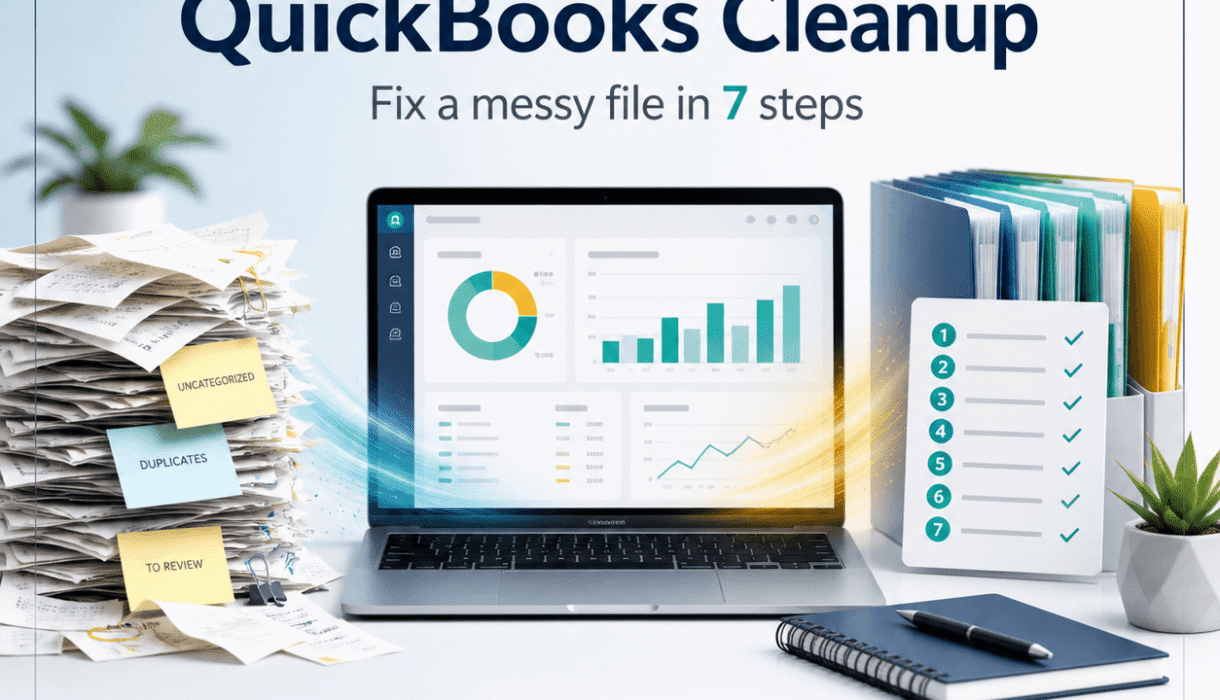
This is the exact 7 step approach we use for QuickBooks cleanups at Smart Bookkeeping Partner. Not magic. Just clean, reconciled books first. Then you can actually trust the numbers again.
If you get halfway through and realize you would rather not spend your weekend investigating “Ask My Accountant” from 2022, that is also valid. You can always grab a free QuickBooks Health Check at https://smartbookkeepingpartner.com/ and we will tell you what is broken, what is fine, and what will take work.
Before you start: make a copy, pick a cutoff date, and stop the bleeding
Three quick things that make cleanup go 10x smoother.
- Back up your QuickBooks file or export what you can. If you are in QuickBooks Online, at least export key reports (P&L, Balance Sheet, General Ledger, Trial Balance) for a few dates so you have a “before” snapshot.
- Pick a cleanup start date. Choose the range that fits your situation: this year only, from the last closed tax year forward, or everything from the beginning.
- Stop making the mess bigger. If bank feeds are auto adding, turn off auto rules that are misfiring. If people are posting random journal entries, pause and centralize changes.
Common cleanup date ranges
- This year only — common if prior year taxes are filed and you do not want to touch them.
- From last closed tax year forward — common when things drifted after the CPA finished last year.
- Everything from the beginning — rarely necessary and usually expensive in time and fees.
Step 1: Run a “mess report pack” (so you know what you are dealing with)
You cannot fix what you cannot see. Start by pulling a few reports that basically tell the truth.
Run these in QuickBooks:
- Profit & Loss (This year to date, and last year)
- Balance Sheet (Same date range)
- General Ledger (This year to date)
- Trial Balance (As of month end, last closed month if possible)
- A/R Aging Summary and A/P Aging Summary
- Reconciliation report status (which accounts are reconciled and through what date)
Also, open the Chart of Accounts and scroll. You are looking for:
- duplicate accounts (like “Advertising” and “Advertising Expense” and “Ads”)
- suspense accounts (“Ask My Accountant”, “Misc Expense”, “Uncategorized Expense”, “Uncategorized Income”)
- random accounts created by apps (Stripe clearing, Shopify clearing, PayPal clearing, but not set up correctly)
Quick gut checks:
- Does Net Income on P&L feel wildly different from reality?
- Does the bank balance in QuickBooks match the bank website right now?
- Is Undeposited Funds huge?
- Are A/R and A/P showing balances even though you do not invoice or do not bill?
- Is Credit card balance positive when it should be negative, or vice versa?
Write down the top 5 issues you see. Seriously, on a note. It helps keep you out of rabbit holes.
Step 2: Lock down your settings, your chart of accounts, and your opening balances
This step is boring. It is also where a lot of cleanups quietly fail.
A. Check key settings (QuickBooks Online)
- Are you using cash basis or accrual basis for reporting? (You can run both, but you should know what you are looking at.)
- Is sales tax turned on properly, if you collect sales tax?
- Is payroll connected and posting correctly?
- Are closing dates set (so old periods do not get edited casually)?
B. Clean up the chart of accounts (do not overdo it)
You are not trying to create an MBA level chart of accounts here. You are trying to make it usable and consistent.
Do this:
- Merge duplicates where appropriate.
- Rename vague accounts into something specific.
- Park “Ask My Accountant” as a temporary holding area only, not a lifestyle.
If you have 6 different “Owner” accounts and 4 different “Loan” accounts, pause. That needs attention now because it impacts the Balance Sheet, and the Balance Sheet is the backbone of cleanup.
C. Confirm opening balances for Balance Sheet accounts
For cleanup starting at a chosen date, you need to confirm these are correct as of the start:
- bank accounts
- credit cards
- loans
- payroll liabilities
- sales tax payable
- retained earnings and equity accounts
If prior year taxes were filed, you generally want QuickBooks to align with the tax return at year end. Not always line by line, but totals should reconcile.
If this is already off, do not start categorizing expenses yet. Fix the foundation first.
Step 3: Reconcile bank and credit card accounts, in order, one account at a time
This is the heartbeat of cleanup.
If you reconcile properly, a lot of “mystery” problems disappear. If you skip reconciliation, everything else is basically guesswork with nicer labels.
Reconcile in this order
- Main operating bank account
- Main credit card
- Any other bank accounts
- Any other credit cards
Do not bounce around.
Tips that save hours
- Reconcile month by month. If you are behind a year, start with the oldest unreconciled month.
- If you see a discrepancy, do not click “Finish anyway” and promise you will fix it later. That is how messy files are born.
- Watch for duplicate transactions from bank feeds. Very common.
- Watch for bank feed transactions posted AND a manual check/expense also posted. Another common one.
What about Stripe, PayPal, Shopify, Square?
If money hits your bank net of fees, you often need a clearing account setup that matches your processor deposits. Otherwise your income is wrong, fees are wrong, or both.
If you use payment processors heavily and the deposits do not tie cleanly, build a proper clearing workflow instead of forcing deposits into random categories.
Step 4: Fix Uncategorized, Ask My Accountant, and rule chaos (without creating new chaos)
Once your accounts start reconciling, now you can tackle the “misc” pile.
Run a Profit & Loss report and click into each of the following categories to review and resolve them:
- Uncategorized Expense
- Uncategorized Income
- Ask My Accountant
Also search the Bank Transactions and Expenses tabs for anything sitting in limbo.
As you manage these tasks, remember that effective reconciliation is crucial. It can be beneficial to refer to resources like this guide on accountant investment and bank reconciliation for more insights on how to streamline this process.
How to handle uncategorized items
- If you can identify it, categorize it properly.
- If it is business vs personal unclear, move it to an Owner Draw/Distribution account (if you are an owner), or ask whoever spent it.
- If it is truly unknown, create a temporary cleanup account like “Suspense Cleanup 2026” and keep it small. The goal is not to hide things. The goal is to isolate what needs follow up.
Bank rules: use them, but audit them
Rules are helpful until they are not.
If a rule is categorizing “Amazon” as Office Supplies but half of Amazon is actually inventory or equipment, you get distorted books fast. Check a sample of rule driven transactions across a few months.
If your file is messy, turn off auto add and go to a review first workflow until things stabilize.
Step 5: Clean up Accounts Receivable and Accounts Payable (especially if you do not use them)
This is where Balance Sheets get weird.
If you DO invoice customers
Then A/R should match reality. Do this:
- Run A/R Aging Summary
- Review old open invoices
- Apply payments properly (no, “Sales Receipt” is not the same thing as receiving payment for an invoice)
- Write off truly uncollectible invoices correctly, not by deleting things
If you do NOT invoice customers (but A/R has a balance anyway)
This usually happens when:
- deposits were coded to an income account through “Invoice” by accident
- journal entries hit A/R
- payments were recorded without a matching invoice
In that case, you need to reclassify so income is still income, but A/R goes back to zero.
Same story for A/P.
Vendor bills and A/P
If you use bills, great. If you do not, and A/P has a balance, you have orphaned bill transactions floating around. Run A/P Aging Summary, click into old bills, and clean them up.
Step 6: Fix the big Balance Sheet troublemakers (Undeposited Funds, payroll liabilities, loans, equity)
These are the accounts that cause the “my books make no sense” feeling.
Undeposited Funds
Undeposited Funds should usually be close to zero, unless you are genuinely holding checks and not depositing them yet.
If it is huge:
- You may have recorded deposits twice.
- You may have used “Receive Payment” but never created the matching bank deposit.
- You may be using payment processors and everything is landing here incorrectly.
Run a report or open the register for Undeposited Funds and identify:
- old items that never cleared
- duplicates
- deposits that should have been grouped
Then clean it up carefully so you do not duplicate income.
Payroll liabilities
Payroll is its own universe.
If payroll liabilities are off:
- confirm which payroll system is the source of truth (QuickBooks Payroll, Gusto, ADP, etc.)
- confirm liability payments were recorded correctly
- reconcile payroll liability accounts to payroll reports
If you are not comfortable here, get help. Payroll mistakes can become tax notice mistakes, and those are not fun.
Loans
Loans should not be a guess.
For each loan, you need:
- beginning balance
- principal payments posted to the loan
- interest posted to interest expense
- lender payments matching bank activity
If your loan payments were categorized entirely as “Loan Payment” expense, your P&L is wrong and your Balance Sheet is wrong. That is common, and fixable.
Owner’s draw, distributions, equity accounts
Equity gets messy fast when:
- personal transactions run through the business
- transfers are coded as income
- retained earnings is changing due to old edits
At minimum, you want:
- a clean owner contribution account
- a clean owner distribution/draw account
- retained earnings not being manually touched
Step 7: Review, tie out, and set guardrails so it stays clean
This is the “make it decision ready” step.
A. Do a final review of financial statements
Run:
- Profit & Loss (this year, last year, month by month if needed)
- Balance Sheet (as of last month end)
- Statement of Cash Flows (optional, but helpful)
Ask:
- Do margins make sense?
- Are major expenses in the right buckets?
- Are there negative balances where they should not be? (negative assets, positive credit cards, etc.)
- Does cash in QuickBooks match the bank after reconciliation?
B. Tie out key accounts
- Bank and credit cards reconciled through last month end
- A/R ties to open invoices
- A/P ties to open bills
- Sales tax payable ties to sales tax reports
- Payroll liabilities tie to payroll reports
- Loans tie to lender statements
C. Add guardrails (this is what keeps you from needing another cleanup)
- Set a monthly close checklist
- Reconcile monthly, not “when things slow down”
- Set a closing date after your monthly close
- Limit who can create new accounts or edit old transactions
- Review bank rules quarterly
A simple cleanup timeline (so you can pace it)
If your file is moderately messy, here is a realistic approach:
- Day 1: Reports, chart of accounts cleanup, identify problem areas
- Day 2 to Day 5: Reconcile bank and credit cards month by month
- Day 6: Uncategorized and miscategorization cleanup
- Day 7: A/R, A/P, Undeposited Funds, loans, payroll liabilities
- Day 8: Final review, tie outs, close process setup
Sometimes it is faster. Sometimes there is one monster issue that takes longer. Usually Undeposited Funds, clearing accounts, payroll liabilities, or years of unreconciled accounts.
What “clean books” actually means (quick definition)
Clean books are not perfect books.
Clean books usually mean:
- all bank and credit card accounts reconciled
- Balance Sheet accounts make sense and tie to real world statements
- income and expenses categorized consistently
- A/R and A/P reflect reality
- you can look at your P&L and actually use it to make decisions
That is it. That is the bar.
When to get help (and save yourself a lot of time)
If any of these are true, you will probably want a pro involved:
- You are behind more than 3 to 6 months and reconciliation is broken
- Payroll liabilities are off and you are not sure why
- You have Stripe, PayPal, Shopify, Square and deposits do not tie
- A/R or A/P is a mess and invoices or bills were posted incorrectly
- You have investor reporting, lending covenants, or need CFO level reporting soon
This is exactly what Smart Bookkeeping Partner does. Cleanup first, then ongoing bookkeeping, then CFO advisory if you want forecasting, KPI tracking, cash flow monitoring, profitability analysis, and all the stuff that actually helps you run the business.
If you want a clear action plan before committing to anything, book the free QuickBooks Health Check at https://smartbookkeepingpartner.com/. Or call 985-401-1210.
For businesses looking to streamline their financial processes further beyond cleanup and basic bookkeeping tasks, understanding the month-end close process can be invaluable. This process ensures that all financial data is accurate and up-to-date before the new month begins.
QuickBooks Cleanup images you can add in WordPress
Use these throughout the post (they are safe, general visuals and fit the topic):
- QuickBooks cleanup checklist image
- Bank reconciliation and statements visual
- Small business owner reviewing finances
- Organized accounting workspace


Wrap up (the honest version)
Most messy QuickBooks files are not messy because someone is careless. They are messy because the business got busy. Stuff got delegated. Bank feeds got clicked too fast. Nobody reconciled for months. And then it just snowballs.
Follow the 7 steps:
- Run the right reports
- Clean up settings, chart of accounts, opening balances
- Reconcile banks and credit cards
- Fix uncategorized and rule issues
- Clean up A/R and A/P
- Fix Undeposited Funds, payroll, loans, equity
- Review, tie out, and set guardrails
If you want a second set of eyes, get the free QuickBooks Health Check from Smart Bookkeeping Partner at https://smartbookkeepingpartner.com/. It is the fastest way to stop guessing and get a real cleanup plan.
FAQs (Frequently Asked Questions)
What are the first steps to take before starting a QuickBooks cleanup?
Before starting a QuickBooks cleanup, you should back up your QuickBooks file or export key reports, pick a cleanup start date that suits your situation (such as this year only, from the last closed tax year forward, or everything from the beginning), and stop making the mess bigger by turning off auto rules that misfire and centralizing changes.
Which reports should I run to assess the state of my QuickBooks file?
Run a ‘mess report pack’ including Profit & Loss (this year to date and last year), Balance Sheet (same date range), General Ledger (this year to date), Trial Balance (as of last closed month if possible), A/R Aging Summary, A/P Aging Summary, and a Reconciliation report status. Also review your Chart of Accounts for duplicates and suspense accounts.
How do I lock down settings and clean up the Chart of Accounts during QuickBooks cleanup?
Check key settings such as cash or accrual basis reporting, sales tax setup, payroll connection, and closing dates. Clean up the Chart of Accounts by merging duplicates, renaming vague accounts into specific ones, and using ‘Ask My Accountant’ only temporarily. Confirm opening balances for all Balance Sheet accounts to ensure alignment with prior tax returns.
Why is reconciling bank and credit card accounts important in QuickBooks cleanup?
Reconciling bank and credit card accounts is the heartbeat of cleanup because it helps eliminate many mystery problems. Proper reconciliation ensures that your financial data matches your actual bank statements, making other bookkeeping tasks more accurate and reliable.
What are common issues indicating a messy QuickBooks file?
Common signs include an angry-looking Profit & Loss statement, confusing Balance Sheet, strange payroll liabilities behavior, large or incorrect Undeposited Funds balances, mismatched bank balances between QuickBooks and actual bank accounts, unexplained A/R or A/P balances when you don’t invoice or bill, and credit card balances showing positive when they should be negative or vice versa.
Can I get professional help if I find QuickBooks cleanup overwhelming?
Yes! If you get halfway through your cleanup and prefer not to spend time investigating old transactions like ‘Ask My Accountant’ entries from previous years, you can take advantage of a free QuickBooks Health Check at https://smartbookkeepingpartner.com/. They will identify what is broken, what is fine, and what requires work.